


Table of Contents
- Step 1: Choose Your Smart Home Ecosystem and Devices
- How to Choose a Smart Home Hub for Your Setup
- Step 2: Pair and Onboard Your First Smart Devices
- Step 3: Build Automations, Scenes, and Voice Assistant Triggers
- Smart Home Security Best Practices for Beginners
- Best Smart Home Device Alternatives Without Subscription
- Troubleshooting Common Connectivity Issues and Firmware Management
- Conclusion: Your Smart Home Setup Starts Here
- Frequently Asked Questions
Last Updated: October 5, 2026
Step 1: Choose Your Smart Home Ecosystem and Devices
Learning how to set up smart home devices for beginners starts with one decision: pick your ecosystem before you buy a single gadget.
Your choice matters more than any single product. A smart bulb that works with Alexa may not work with Apple Home.
The good news: the Connectivity Standards Alliance's Matter standard now lets many devices work across all three platforms.
Understanding Device Compatibility and Ecosystem Selection
Check three things before you buy:
- Platform support: Does the device list Apple Home, Google Home, or Alexa?
- Wireless protocol: Wi-Fi, Thread, Zigbee, or Bluetooth?
- Hub needs: Does it require a bridge or hub to work?
Most beginners do best with Wi-Fi devices. They connect straight to your router with no extra hardware.
How to Choose a Smart Home Hub for Your Setup
A smart home hub is a small device that connects your smart products together and runs your automations. You may not need one at all if you stick to Wi-Fi devices. But once you pass roughly 15 to 20 Wi-Fi devices, most home routers start to struggle, and a hub becomes the smarter path.
Here is how the main options compare:
| Setup Type | Hardware Needed | Best For | Trade-Off |
|---|---|---|---|
| No hub (Wi-Fi only) | Router only | Renters, small setups | Clogs Wi-Fi with many devices |
| Cloud-based hub | Hub plus internet | Voice control fans | Stops working if internet drops |
| Local control hub | Hub, no cloud needed | Privacy-focused homes | Pricier, more setup |
| Thread border router | Speaker or hub | Modern Matter devices | Newer, fewer device options |
Hub vs. No Hub: Cloud-Based vs. Local Control Architecture
Cloud-based hubs send every command through the internet. Local control hubs run automations inside your home.
Local control means lower latency and your routines keep working when the internet goes down. It also keeps more of your data off company servers.
For a first apartment or a handful of devices, skip the hub. Add one later when your device count grows.
Matter and Thread: The Standard That Changes the Hub Decision
This is the part most beginner guides skip, and it is the single biggest shift in smart home setup in years. Matter is an interoperability standard backed by the Connectivity Standards Alliance.
Thread is the wireless protocol many Matter devices use. It is a low-power mesh network, similar in spirit to Zigbee, but it speaks IP natively so it does not need a proprietary bridge.
What this means for a beginner:
- Buy Matter-certified devices when the price is close. They survive an ecosystem switch later.
- Check whether you already own a Thread border router before buying one. Look in your smart speaker or router app under "Thread" or "Matter."
- Thread devices still need a hub or app for automations. Thread handles the radio link; Matter handles the language; your app or hub still runs the logic.
How to Actually Pick One
Work through this in order:
- Count your planned devices. Under 10 and all Wi-Fi? Skip the hub.
- Check for a free border router. If your speaker or router already supports Thread, you have a head start.
- Decide on cloud vs. local. If internet outages or data residency matter to you, lean local.
- Match the hub to your ecosystem. Apple Home users often pair an Apple TV or HomePod as the hub; Alexa users use an Echo; Google users use a Nest Hub or Google TV device.
- Only then buy a dedicated hub if you need Zigbee, Z-Wave, or advanced local automations.
A common pattern among beginners is to buy a hub too early, then discover their Wi-Fi devices never needed it. Buy the hub when a specific device or automation forces the decision, not before.
Step 2: Pair and Onboard Your First Smart Devices
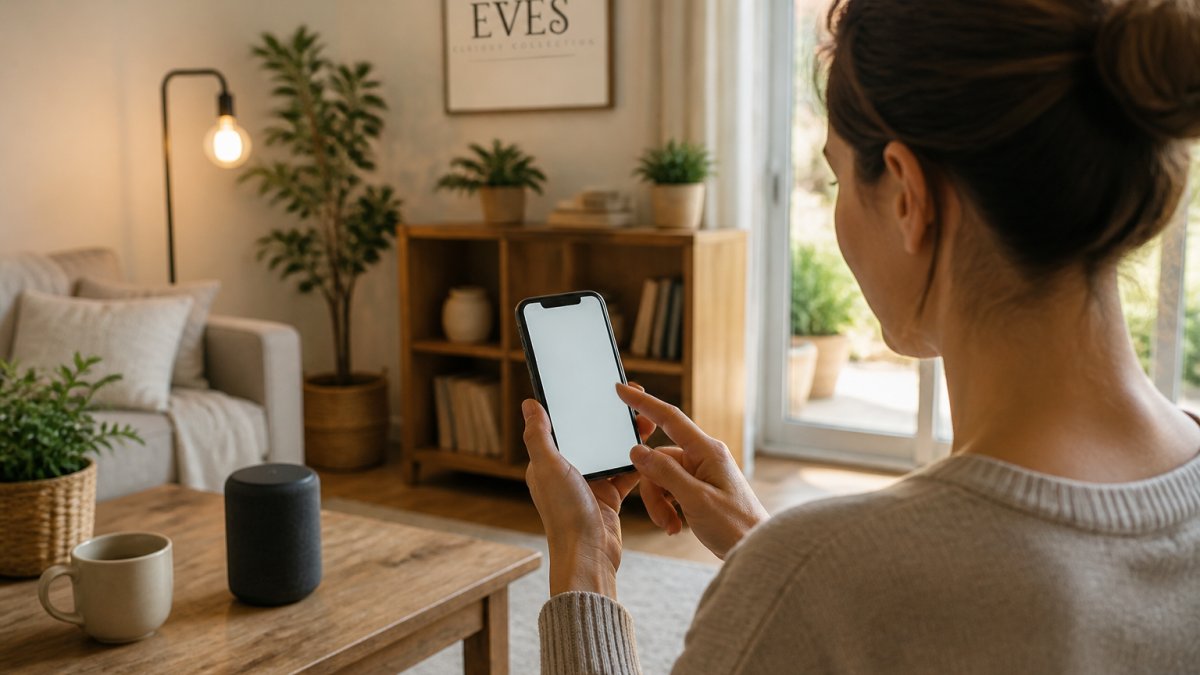
Pair one device at a time, and test it fully before opening the next box. This single habit prevents most beginner headaches.
Initial Device Pairing and Onboarding Tips
Follow this order for a smooth setup:
- Plug in the device and wait for its light to blink.
- Open your hub or manufacturer app and tap "Add Device."
- Put your phone within a few feet of the device.
- Enter your Wi-Fi password when asked. Use the 2.4 GHz network.
- Rename the device right away. "Living Room Lamp" beats "Device 004."
- Test it once. Then move to the next device.
A common mistake is skipping the rename step. Two weeks later, you will not remember which plug is which.
Step 3: Build Automations, Scenes, and Voice Assistant Triggers
Automations turn a pile of gadgets into a home that runs itself. Start with two or three, not twenty. A home with 30 automations you do not understand is worse than a home with three you trust.
Every automation has three parts:
- Trigger, what starts it (a time, a sensor event, a device state change, a voice command).
- Condition, when it is allowed to run (only if I am home, only on weekdays, only after sunset).
- Action, what happens (turn on lights, lock the door, send a notification).
Beginners usually get the trigger and action right and forget the condition. That is why the porch light turns on at 7 a.m. on a Saturday when you wanted it only on workdays.
Build Your First Three Automations
Try these in order. Each one teaches a different mechanic:
- Morning scene (time trigger): Lights fade on at 7 a.m. on weekdays. Add a condition so it only runs when someone is home.
- Away mode (state trigger): All lights off when the last phone leaves the geofence. Most apps call this "presence" or "location" based.
- Night motion (sensor trigger + condition): Hallway light at 20% brightness when motion is detected, but only between 10 p.m. and 6 a.m.
Once those work, layer in a fourth:
- Sunset trigger: Lights on 15 minutes before sunset. This uses your zip code's sunset time automatically in most apps, so it shifts with the seasons without you touching it.
Scenes vs. Automations: Know the Difference
A scene is a saved state, "Movie Time" dims the lights, closes the blinds, and turns on the TV.
ype-C Micro USB Smart IR Remote Control Phone APP Mini Adapter →
An automation is the rule that fires the scene. Beginners often build a scene and wonder why nothing happens.
Voice assistants make control hands-free. Say "Alexa, goodnight" or "Hey Google, turn off the kitchen" and your scene runs.
Keep scene names short.
A Privacy-First Angle Most Guides Skip
If you would rather not have your automations routed through a company server, you have options, and they are worth knowing before you build a dozen cloud-dependent routines.
- Local-first hubs run automations on hardware in your home. If the internet drops, your lights still respond.
- Matter and Thread reduce cloud dependence because commands can travel device-to-device over your local network.
- Voice assistants are the exception. Alexa, Google Assistant, and Siri all process wake-word audio in the cloud by default. If voice control is a must, accept that trade-off; if it is not, build scenes you trigger from a phone widget or a physical button instead.
A common pattern is to keep voice control for convenience in shared spaces and use local buttons or sensors for bedrooms and anything you would not want a microphone near.
Test Before You Scale
Run each new automation for a full week before adding the next. Watch for false triggers, a motion sensor near a heating vent, for example, will fire every time the furnace kicks on. Fix the trigger, not the action. Most "broken" automations are actually mis-tuned triggers, and the fix is usually a condition, not a new device.
Smart Home Security Best Practices for Beginners
Smart home security best practices start with your router, not your cameras. A weak network undermines every device on it.
Do these five things:
- Change the default password on every device during setup.
- Create a separate guest Wi-Fi network just for smart devices.
- Turn on two-factor authentication in each device app.
Data privacy deserves the same care. Check what each app collects and where it stores recordings. Local storage on a hub keeps footage in your home instead of a company server.
For official guidance on connected-device safety, the FCC cybersecurity tips for smart devices are a solid starting point.
Best Smart Home Device Alternatives Without Subscription
The best smart home device alternatives without subscription are devices that store data locally and run automations on your own hardware. No monthly fee, no cloud lock-in.
Subscriptions add up fast. Many camera brands charge monthly for video history. Plenty of free options exist instead:
- Local storage cameras that save to a memory card.
- Matter-certified plugs and bulbs with no account required.
- Your phone as a remote. A Type-C Micro USB Smart IR Remote Control Phone APP Mini Adapter turns your phone into a universal remote for your TV, set-top box, and air conditioner, with no subscription at all.
Budget-friendly scaling means adding one device at a time as your needs grow.

Troubleshooting Common Connectivity Issues and Firmware Management
Most connectivity problems trace back to three causes: weak Wi-Fi, an outdated app, or a device that needs a restart.
Try this checklist:
- Restart the device, then the router.
- Move the device closer to the router and retest.
- Confirm your phone is on the 2.4 GHz network.
Firmware is the software inside each device. Updates fix bugs and close security holes. Turn on auto-updates where the app allows it.
A wireless mesh system helps in larger homes. Mesh nodes spread one network name across the whole house, which cuts dead spots and latency.
Conclusion: Your Smart Home Setup Starts Here
Your first smart home does not need to be big or expensive. Pick one ecosystem, pair one device, and build from there.
That is where Eve's Curious Collection comes in. We hand-pick unique, useful gadgets, from a 3 In 1 LED Fast Wireless Charger Stand to a 60W Wireless Charger Pad, and ship them fast to your door.


Shop now with Eve's Curious Collection and find your next smart home upgrade.
Frequently Asked Questions
What is the first device I should buy for a smart home?
Start with a smart speaker or a smart plug. A smart speaker like an Amazon Echo or Google Nest gives you voice control and acts as a hub for many devices. A smart plug is inexpensive and lets you control a lamp or small appliance from your phone. Both are easy to set up and help you learn the basics of smart home setup before adding more complex devices.
Do I need a smart home hub to connect my devices?
Not always. Many smart devices connect directly to your Wi-Fi network and can be controlled through their own apps or a voice assistant. A hub becomes useful when you want local control, want to connect devices that use different protocols like Zigbee or Z-Wave, or want automations to run even when the internet is down. If you plan to expand your system, a hub is a good investment.
How do I keep my smart home devices secure?
Change default passwords on your router and each device, enable two-factor authentication where available, and keep firmware updated. Create a separate Wi-Fi network for smart devices if your router supports it. Avoid using public Wi-Fi to control your devices, and disable features like universal plug and play (UPnP) on your router unless you need them. These smart home security best practices reduce the risk of unauthorized access.
Can I set up a smart home without a subscription?
Yes. Many smart home devices work fully without a monthly fee. Look for devices that store data locally or offer free cloud storage for basic features. The best smart home device alternatives without subscription often use local control or Matter, so you can automate and monitor your home without ongoing costs.


